Step by step Installation of Oracle 11gR2 on OEL 6.3 in Virtual Box
Prerequisites and links to download required software
- Virtual box software Click Here to Download
- Oracle Linux Operating System 6.3 Click Here to Download
- Oracle 11g Grid Infrastructure Software Click Here to Download
- Oracle 11g Database Software Click Here to Download
Chapter 1 : Create and configure virtual machine
1. Double click to Open Virtual Box and click new to create new virtual machine

2. Enter the machine name, select the type as Linux and set Linux version as Oracle - 64 Bit. Next set the RAM (Memory) for 2 GB as specified below, then click on Create button

3. Now Virtual Box will prompt for location of virtual hard disk file and size of the virtual machine. We have specified the location and size set to 60 GB


5. Now you will get settings pane, on the left side bar you will find network option. Click on the Network option

6. Now select the network options and set the adapter 1 setting as specified in the screen shot below, then click on adapter 2

7. Select the network options and set the adapter 2 setting as specified in the screen shot below, then click on Shared Folders

8. Click on the add folder symbol to the top right corner

9. Click on the browse the path which you want to make Shared folder in your local system for the VM, check read-only and auto-mount options. Then click OK

10. Again click on OK, now we are done with VM creation for installing Linux OS. Next chapter we will start installing Linux on Virtual Machine

Chapter 2 : Installing Linux on Virtual Machine
11. We will start the OEL installation in the virtual machine created. Please download the OEL software from the link mentioned in the prerequisites section. Now click on button to start the Virtual Machine
 12. Once virtual machine starts there will be a popup window to select the Linux installation media. Here you can select the media ISO file having Linux installation or if you have the CD/DVD, please specify the DVD drive. We are selecting the Linux installation ISO to start OS installation

13. We shall specify the ISO path

14. Now Click on Start button to begin installation

15. Select the first option and press Enter

15. This step checks to installation media if its Select skip option
13. We shall specify the ISO path
14. Now Click on Start button to begin installation
15. Select the first option and press Enter
15. This step checks to installation media if its Select skip option

16. Click on next button to proceed

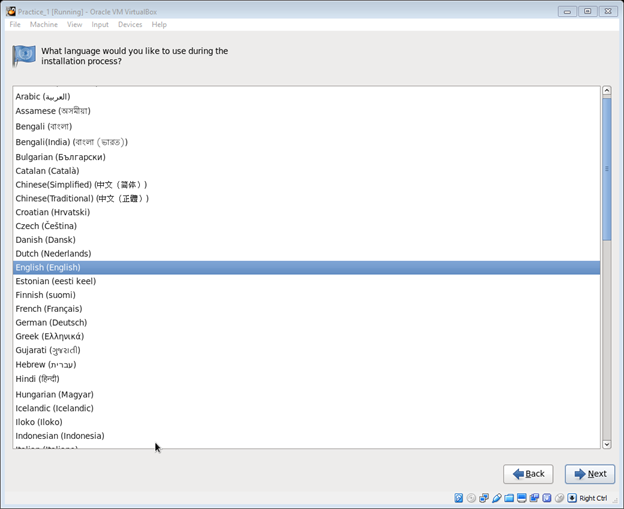
17. Select the regional language and click Next
18. Select keyboard as US English and click Next

19. Select checkbox basic storage device and click Next

20. Click on Yes, discard any data option and again click Next

21. Now provide the hostname for the virtual machine as specified below or you can choose hostname of your wish, but we have set pract1.localdomain as the hostname. After hostname is specified we have to configure the network, so click in the Configure Network button


23. Now check on connect automatically, specify the IP Address, netmask and gateway information as mentioned below and click on Apply button

24. Next edit eth1, check the Connect Automatically option, leave all the other option default and click Apply

25. Here we are completed with network configuration, Now click on Next

26. Select the timezone and Click Next to proceed

27. Provide the root password, if password is weak wizard popup alert, click on Use Anyway and click on next button

28, Select the appropriate option for partitioning, we are creating custom partitions as per our own requirement. Check Create Custom Layout and click Next

29. Now double click on Free to get Add Partition wizard. We add partition for / mount point with 12 GB or 12000 MB. Please provide information as specified below and click OK

30. Again double click on Free to add swap space of about 4 GB and click on OK

31. Again double click on Free to add another mount point /u01 , check maximum allowable size and click on OK

32. Now we have partitioned the disk, click on Next

33. Click on Format button

34. Click on Write changes to disk button and later click on Next

35. After formatting click on Next

36. Keep the default settings and click Next to proceed further

37. Select Database Server option, check the option Customize now as shown in screen and click Next

38. Click on Base systems and select Compatibility Libraries


40. Select Applications and select Internet Browser components

41. Select Development then check Development tools, Additional Development

42. Click on Next

43. Now Installation of Linux begins

46. After installation of Oracle is complete, Click on the Reboot

47. After reboot, click on Forward

48. Now accept the licence agreement and click on forward

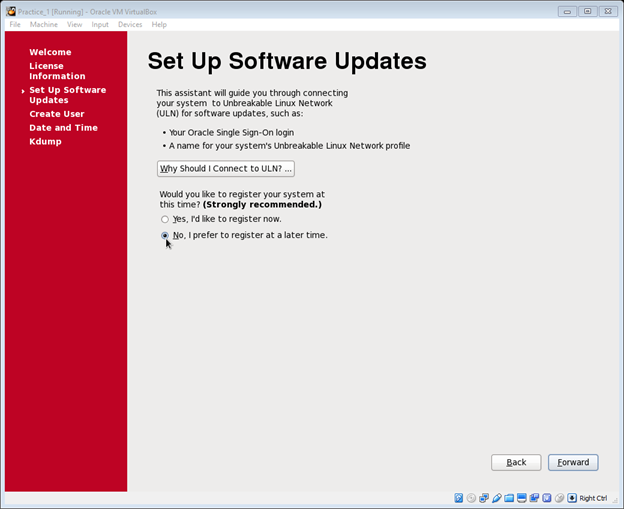
49. Here we will choose to register later, so select No option and click forward
50. Click on No Thanks, button to proceed further

51. Click on Forward

52. We can create users later so keep all the fields blank and click on Next

53. Click on Forward

54. Click on Finish. With this step we complete Linux Installation

55. Now click on other

56. Enter the Username as root

57. Enter the password and click on Login

58. Now you have logged in. In the next chapter we will prepare the system for Oracle Database software installation

Chapter 3 : Prepare the system for Oracle Database Software Installation
59. Install guest additions CD image. To do that we will mount the image first

60. Double click on the VBOXADDITIONS image, then click on Run

61. Now Click OK button


63. Now we will create the required groups and users for oracle installation

64. Create required directories for Oracle Installation and copy the software from the shared disks.

65. We will install pre-requisite RPM's required for Oracle installation as below command
# yum install oracle-rdbms-server-11gR2-preinstall
then press y and press Enter


66. We have to disable the firewall. Click on System > Administration > Firewall

67. Now click on OK and press disable option

68. Click on Yes and proceed

69. Edit /etc/selinux/config, here change the parameter SELINUX=disabled
#vi /etc/selinux/config
i
To edit file press i, after the parameter edited press escape then type as mentioned below w for save and q for quit
:wq

70. Now set the hostname, to do that edit /etc/hosts file as mentioned below
#vi /etc/hosts
enter
192.168.25.11 pract1.localdomain pract1
To edit file press i, after the parameter edited press escape then type as mentioned below w for save and q for quit
:wq

71. Change the owner of the mount point where Oracle has to be installed then restart the machine
#chown oracle:oinstall -R /u01
#init 6
enter
Chapter 4 : Oracle Installation
72. After restart login as oracle user

73. Now unzip the Oracle Software Installation Setup files using below command. After unzip log on to database directory and run the installer to install Oracle Database Software
$unzip linux.x64.11gR2.database_1of2.zip
==>> Pres Enter
$unzip linux.x64.11gR2.database_2of2.zip
==>> Press Enter
==>> Pres Enter
$unzip linux.x64.11gR2.database_2of2.zip
==>> Press Enter
$cd database
$./runInstaller
==>> Press Enter
74. Uncheck the "I wish to receive security updates...." checkbox and click Next

75. Click on No and proceed

76. Select Install Database Software Only option and click Next

77. Select Single instance database installation option and click Next

78. Click Next to proceed

79. Select Enterprise Edition and Click Next

80. Specify Oracle Base location and Oracle Home Location then click Next

81. Specify Oracle Inventory Location and its group as dba, then Click Next

82. Select the OSDBA and OSOPER group as specified below, then click on Next

83. Check ignore all option and click Next

84. Verify the parameters and click on Finish

85. Now Oracle installation starts


86. While installation is in process, installer will prompt for running couple of scripts as root users

87. Login as root user and run orainstRoot.sh
$su - root
Enter the password
#/u01/app/oraInventory/orainstRoot.sh
Enter the password

88. Now run root.sh script
#/u01/app/oracle/product/11.2.0/dbhome_1/root.sh
Enter the password

89. Now we have completed Oracle Installation. Finally click on Close button, next chapter we will see how to create the database

Chapter 5: Post Installation Step
90. Set profile with ORACLE_HOME location and PATH
[oracle@pract1 ~]$ vi .bash_profile
export ORACLE_HOME=/u01/app/oracle/product/11.2.0/dbhome_1
export PATH=/u01/app/oracle/product/11.2.0/dbhome_1/bin:$PATH
press esc button
:wq
[oracle@pract1 ~]$ . .bash_profile
Chapter 6: Database Creation
91. Run dbca, on the GUI click on Next
[oracle@pract1 ~]$ dbca

92. Check on Create a Database option and click Next

93. Select General Purpose or Transaction Processing option and click Next

94. Enter the Database Name and SID, the click Next

95. Uncheck Configure Enterprise Manager and Click Next

96. Enter the password for sys and system account and click Next

97. Click on Yes

98. Set the data files location and click Next

99. Here I have not enabled archive log mode and flash back mode, so will uncheck both the options and click Next

100. Click Next and proceed

101. Here we will set SGA and PGA memory, then click Next

102. Now Click on Next

103. Check the Create Database option and Click Finish

104. Click on Ok, afterwards database creation starts

database creation proceeds

105. Click on Exit button. Now we have completed Oracle database installation


